
How to Optimize Free Fire on iPhone: Best Settings from 7 to 15 Pro
 Your smartphone is capable of more than you think. Proper configuration in [Freef...

Your smartphone is capable of more than you think. Proper configuration in Freefire Global can turn even an old iPhone 7 into a reliable tool for victories, and modern models into professional esports machines. In this guide, we will analyze how to squeeze the maximum FPS and responsiveness out of every generation of Apple devices.

System Preparation Before the Battle
Before changing the internal game parameters, you need to prepare iOS itself. These steps are relevant for all iPhone owners:
- Memory Cleanup: Close all background programs to free up CPU and RAM resources.
- Game Mode: Activate "Do Not Disturb" or create a special "Focus" profile so that notifications do not block your view at a critical moment.
- Software Update: Make sure you have the latest version of iOS installed — Apple often releases patches that improve GPU performance.
- For Older Models: If you are playing on an iPhone 7 or 8, be sure to turn off "Live Wallpapers" and transparency in the accessibility settings.
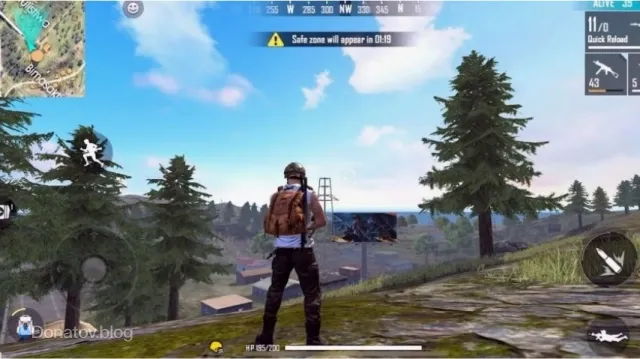
Although the game's system requirements are lower than competitors like PUBG Mobile, excessive load on the system can still cause micro-stutters.
Optimal Graphics Parameters for Your Model
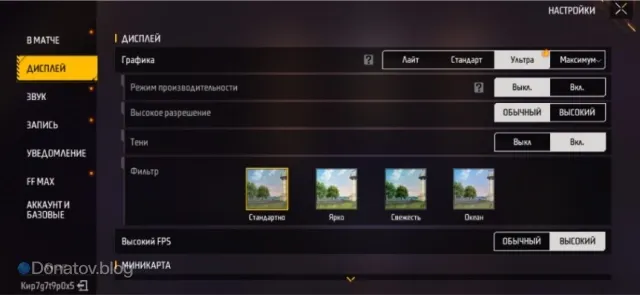
Performance directly depends on the hardware. Here are the recommendations for different generations:
- iPhone 7 / 8 / X: Set graphics to "Low" and limit the frame rate to 30 FPS. This minimizes overheating and throttling.
- iPhone 11: The optimal choice is "Medium" settings and 40 FPS. Important: remove thick cases while playing, as this model is prone to heating up.
- iPhone 12: You can safely set "High" graphics and 50 FPS. This will provide an excellent balance between visual quality and smoothness.
- iPhone 13 / 14: These devices easily handle maximum settings. We recommend locking at 60 FPS for stability.
- iPhone 15 Pro / Pro Max: 120 FPS mode is available here. Combined with top-tier graphics, this gives a colossal advantage in reaction speed.
Sensitivity Settings (Sensi)
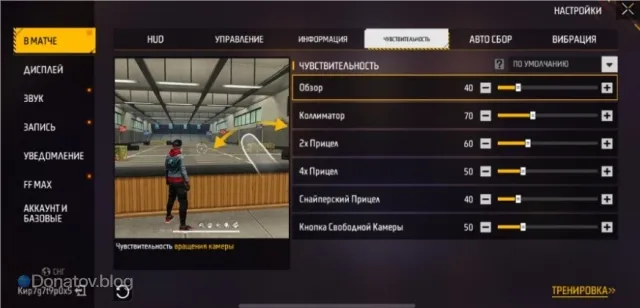
For accurate shooting and fast "drag shots," try starting with these basic values in the "In-Match" menu:
- General: 40
- Red Dot: 90-95
- 4x Scope: 75-80
- Sniper Scope: 40-50
Model Adjustments:
- On iPhones with a button (7/8), add +5 to sensitivity since the sensor is less responsive compared to bezel-less models.
- On iPhone 15 Pro with a high refresh rate screen, sensitivity can be left at standard levels — the smoothness of the image itself makes aiming easier.
Lifehack: Disable "Auto-Brightness" in iPhone screen settings. This will prevent the display from suddenly dimming during battle due to heat or changes in room lighting.
Want to decorate your character with rare skins? On gamesdrop.io, you will find instant diamond top-ups at the best prices. Fast delivery and reliability — your path to top-tier inventory!
FAQ: Frequently Asked Questions
1. Why does my iPhone start lagging after 20 minutes of play? This is likely throttling due to overheating. Try lowering the screen brightness and removing the case.
2. Can I play at 120 FPS on a regular iPhone 13? No, high refresh rate support (ProMotion) is only available in Pro and Pro Max models starting from the 13th series.
3. Does a screen protector affect sensitivity? Yes, cheap glass can worsen response time. If you feel a delay, increase the sensitivity parameters in the game settings by 5-10 units.
Ready to Level Up Your Gaming?
Get the best rates on game currencies and gift cards at GamesDrop